Storytel Reader
Storytel's own 6-inch E Ink e-reader (2018–2024), built by Onyx on Android and locked to the Storytel app and an active subscription.
Support status
Supported by the manufacturer
Sales ended in 2024, but Storytel still updates the reader app (26.4.0, 2026). Latest firmware: 1.8.0 for generation 2 (March 2025) and 1.4.0 for generation 1 (November 2024). Needs an active subscription and login.
- Manufacturer
- Storytel
- Released
- 2018
- Discontinued
- 2024
- Last official firmware
- 1.8.0 (gen 2), 1.4.0 (gen 1) · 5 March 2025
- Servers
- Needs servers to work
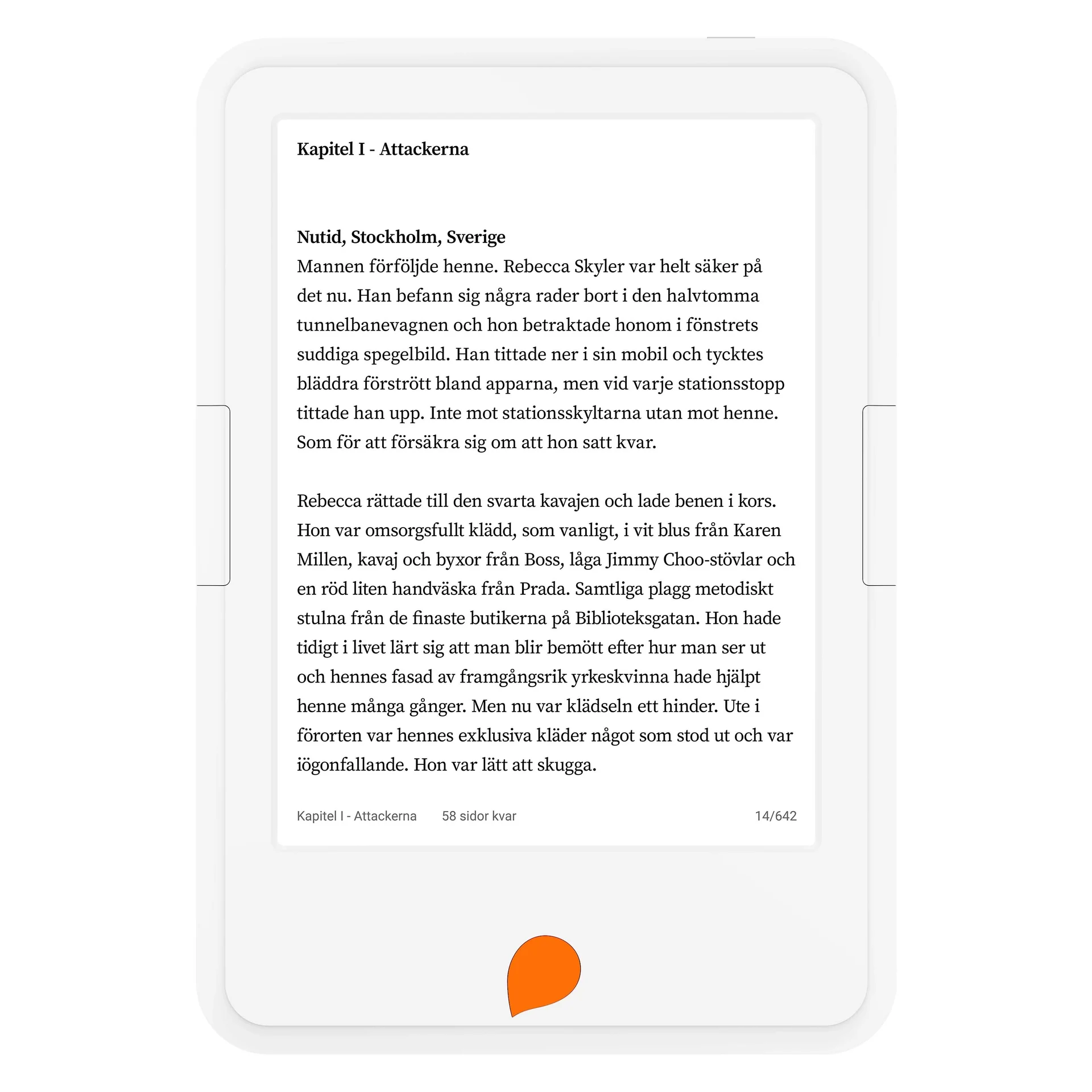
Overview
Storytel Reader is the in-house e-reader of the Swedish audiobook and e-book service Storytel. It was announced in May 2018 at 999 SEK and first sold in Sweden, Denmark and Finland. In Denmark the same device was sold as the Mofibo Reader, and it reached the Netherlands in 2021. An updated version arrived in October 2020 with USB-C, Bluetooth, better battery life and adjustable warm/cold light.
It has a 6-inch E Ink touchscreen with a light, physical page-turn buttons on both sides and an orange home button. Under the shell it is an Android device made by the Chinese company Onyx (Boox), but it runs only the Storytel app and needs an active Storytel subscription to be usable.
Storytel stopped selling the Reader in summer 2024. Storytel says existing readers keep working and the warranty still applies. Because the device depends entirely on Storytel's service, it is a good candidate for unlocking. A community project turns it into a generic Android E Ink tablet (see Jailbreak).
Sources: Storytel press release (May 2018), M3 on the 2020 version, Storytel's end-of-sale page.
Hardware
There are two generations. From the outside they look almost identical. The easiest tell is the USB port: micro-USB on generation 1 and USB-C on generation 2. Both were made by Onyx (Boox). Generation 1 is the Onyx model C67ML_Carta_Plus (codename padda). The generation 2 mainboard is labelled BOOX_C68_RK3128_LPDDR2_V1.1 (codename salamander).
| Generation 1 (2018) | Generation 2 (2020) | |
|---|---|---|
| SoC | Rockchip RK3026 (2 × Cortex-A9) | Rockchip RK3128 (4 × Cortex-A7) |
| GPU | Mali-400 | Mali-400 MP2 |
| RAM | 512 MB | 1 GB LPDDR2 (Nanya NT6TL256T32BA) |
| Storage | 8 GB eMMC | 8 GB eMMC (Samsung KLM8G1GETF) |
| Wireless | Wi-Fi 2.4 GHz | Wi-Fi 2.4 GHz + Bluetooth (AMPAK AP6212) |
| Android | 4.2.2 | 6.0.1 (32-bit) |
| USB | micro-USB | USB-C |
| Light | Front light | Front light with warm/cold adjustment |
Generation 2 in detail (read off the board and the device tree):
- Screen: E Ink Carta panel ED060XCD, 6 inch, 1024 × 758 pixels, driven by the RK3128's own EBC controller. A TI TPS65185 supplies the panel's high voltages and VCOM.
- Power: X-Powers AXP223 (charger, fuel gauge, power key). A TI LM3630A drives the front light.
- Touch: FocalTech, on a separate flex cable (
LX-6002). - Battery: 3000 mAh Li-polymer with a 3-wire connector (red, white, black). The white wire is most likely an NTC temperature sensor.
- Board: three pads at the top left (GND and two unmarked) are most likely a serial console (UART2, 3.3 V, 115200 baud). There is also an unpopulated microSD footprint. The SD controller is enabled in the device tree, so a soldered-on socket should work (untested).
Shared, per Storytel's spec sheet: page-turn buttons on both sides, an orange home button, a 3.5 mm headphone jack, 195 g and 170 × 117 × 8.7 mm.
Sources: Modda's own measurements on two generation 2 units (board photos, partition dumps and device tree, 2026), StorytelReaderMods, Storytel product page, archived May 2024, MobileRead Wiki: Mofibo Reader.
Software & firmware
The Reader runs a locked-down Android (4.2.2 on generation 1, 6.0.1 on generation 2). The launcher is Storytel's com.storytel.bootstrap app, which installs and updates the actual reader app, com.storytel.inkreader. You sign in with your Storytel account, and the device only works with an active subscription.
Latest versions (November 2026):
| Generation 1 | Generation 2 | |
|---|---|---|
| Firmware | 1.4.0 / build 16 (2024-11-11) | 1.8.0 / build 30 (2025-03-05) |
| Reader app | 26.4.0 | 26.4.0 |
So Storytel is still updating the reader app in 2026. Firmware and app come from Storytel's update service, which needs no login. It only ever offers the latest version. The firmware packages are signed by Onyx, and the Reader's recovery accepts them offline too (see Recovery). Storytel's regular phone app needs Android 8 and cannot run on the Reader.
- Your own books: DRM-free ePub files are uploaded through the Storytel website and synced to the device. It does not show up as USB storage on a computer.
- Connectivity: According to the retailer Coolblue, the device must go online at least every 30 days. Otherwise downloaded e-books are deleted.
- Wi-Fi turns off in sleep: about 15 seconds after the screen goes off, Onyx's power manager turns Wi-Fi off, even when charging. The system property
ro.storytel.wifi.autoclosecontrols this. Android's usualwifi_sleep_policysetting has no effect on it. - Known bug (generation 2): some units get stuck in a reboot loop where
system_servercrashes on a broken CPU-time counter (uid_cputime). It happens on untouched firmware too, often right after boot. The same bug is reported in StorytelReaderMods issue #27.
If Storytel turns off the service for the Reader, it is effectively useless unless unlocked.
Sources: Modda's own tests on two generation 2 units (2026), Storytel's end-of-sale page, Coolblue: own books, Storytel support: app requirements.
Jailbreak & mods
Status: unlockable (both generations). The community project StorytelReaderMods by Niklas Therning (2023) turns the Reader into a generic Android E Ink tablet.
How it works, in short:
- Boot into flash mode: hold the orange button and plug in a USB-A data cable (see Recovery). The project calls this "maskrom", but on generation 2 it is really U-Boot's rockusb mode.
- Back up the
bootpartition withrkflashtool. Always do this first. - Flash a patched
bootimage. It setsro.secure=0,ro.debuggable=1andro.adb.secure=0and turns ADB on. On generation 2 it also adds Magisk, but without the Magisk app, sosuis still refused. - Reboot and install apps with
adb install, for example the RelaunchX launcher or KOReader.
Pitfalls on generation 2 (Modda's own tests, 2026):
- The prebuilt
bootimage comes from a different firmware (2023-02-15). If your Reader runs newer firmware, you end up with an older kernel on a newer system. The next official update also writes the stockbootback, and ADB is gone. - A better way: first update to the latest official firmware, then patch your own
bootwith only the ADB settings. That way the kernel always matches the system. - The Reader lacks the ISRG Root X1 root certificate, so HTTPS to many sites, F-Droid among them, fails until it is added.
- The
uid_cputimecrash loop (see Software) keeps ADB alive for only a few seconds. You can stop it withchmod 0000 /proc/uid_cputime/show_uid_statfrominit.rcin the patched ramdisk.
Generation 1 (Android 4.2): ADB works but there is no root. F-Droid does not work, so install APKs directly. The last KOReader release for Android 4.2 is v2023.06.1.
The project provides the patched images and tools. Modda only links to them and hosts no files. You make these changes at your own risk.
Recovery & unbrick
From easiest to hardest. Each rung works as long as the one below it is intact. The Rockchip SoC's boot ROM cannot be overwritten, so a Reader that was flashed wrong can always be recovered.
1. Flash mode (rockusb). Power off and hold the orange button while connecting a USB-A data cable from your computer: micro-USB for generation 1, USB-C for generation 2. A USB-C to USB-C cable does not work. The screen stays blank, but the computer sees the device as 2207:292c (generation 1) or 2207:310c (generation 2). With ADB running, adb reboot bootloader gets you to the same mode. Here rkflashtool can read and write every partition except the bootloader itself. Never write to uboot or the area before the first partition.
2. Recovery mode. Here you can wipe data (factory reset) and cache.
- Generation 1: Power off (blue LED off) and unplug USB. Hold the orange button, then the power button, until "Recovery system ..." appears, which takes about 15 seconds. It has "Apply update from ADB", and several users have installed the official 1.4.0 firmware with
adb sideload(StorytelReaderMods issue #17). - Generation 2: Power off and unplug USB. Hold the orange button and plug in a wall charger, not a PC. There is no sideload menu, but recovery trusts Onyx's signing key. Modda updated a unit from 1.6.0 to 1.8.0 fully offline: put the official zip in
cachetogether withrecovery/command(--update_package=/cache/update.zip). Then write aboot-recoverymessage at offset0x4000inmisc, both over rockusb, and reboot. The Reader shows "Storytel is upgrading..." and then boots the new version.
3. True mask ROM. If the boot ROM finds no valid bootloader on the eMMC, it drops into mask ROM by itself. You can also force it by shorting the eMMC clock to ground at power-on. This needs rkdeveloptool and Rockchip's RK3128 loader (from rkbin), because rkflashtool cannot upload a loader. This rung recovers even an erased bootloader.
4. Direct eMMC access. The last resort is to solder wires to the eMMC test points and read it with a card reader. It needs fine soldering.
Restoring stock: flash your own backup back, for example rkflashtool w boot < boot.img, or install the official firmware through recovery as above. The official update writes only system and boot.
Sources: Modda's own tests on two generation 2 units (2026), StorytelReaderMods, StorytelReaderMods issue #17.
Repair & parts
There is no official spare parts channel and no documented repair guide from Storytel. The most common faults are a broken screen, a worn battery and readers that won't boot.
- Screen (generation 2): the panel is an E Ink Carta ED060XCD (6 inch, 1024 × 758). It is sold as a spare for PocketBook readers (the 606 and 615, among others) for about €30–75. Buy a panel whose listing photo shows the ED060XCD part number, not just the title. ED060XH7 is not always interchangeable. Check the connector (usually 34 pins) and whether the panel comes with or without the front light. Touch is on a separate flex cable.
- VCOM: every E Ink panel has its own measured VCOM value on a sticker, for example
-2.72. Note the new panel's value. A wrong VCOM gives poor contrast and ghosting, and over time can damage the panel. - Battery: 3000 mAh Li-polymer with a 3-wire connector (red +, black −, white most likely a temperature sensor). We found no replacement battery sold specifically for the Reader. Compare size, voltage and connector with your original before buying a generic cell. A battery that was deeply discharged (to about 2 V) may afterwards last only a few hours.
- Screen freezes but the Reader is alive: when the battery is nearly empty, the screen's power chip stops answering and the image freezes while Android keeps running. Charge from a wall charger for a while before troubleshooting further.
- Won't boot: try recovery and flash mode before taking it apart (see Recovery). A device that shows up as
2207:xxxxon the computer is alive. - Keeps rebooting (generation 2): see the known
uid_cputimebug under Software. - Tools: a plastic spudger to open the shell. Never use metal near the screen.
Safety: Do not puncture or bend a swollen Li-polymer battery. Take it to battery recycling.
Sources: Modda's own tests on two generation 2 units (2026), Elektroda on ED060XCD vs ED060XH7, StorytelReaderMods (board photos).
Revisions
Find your revision by its model number (usually on a label under or behind the device).
| Model | Model number | Made | Jailbreak | From |
|---|---|---|---|---|
| Storytel Reader (Gen 1, micro-USB) micro-USB, codename padda. ADB can be enabled, no root. Latest firmware 1.4.0. | Gen 1 (RK3026) | 2018–2020 | Partial | – |
| Storytel Reader (Gen 2, USB-C) USB-C, Bluetooth, warm/cold light, codename salamander. ADB via a patched boot. Latest firmware 1.8.0. | Gen 2 (Onyx BOOX C68, RK3128) | 2020–2024 | Yes | – |
Spare parts
Parts that fit. The note says which revisions they fit.
Guides
Links and resources
Modda hosts no files. Links go to the source, and to an archived copy where the original may disappear.
Official
- Storytel Reader – Storytel (slut på försäljningen)Archived copy
Storytel's page: no longer sold; existing readers keep working and warranty applies.
- Storytel launching its own e-reader (pressmeddelande, maj 2018)
Launch: 999 SEK, Sweden, Denmark, Finland.
Source code
- StorytelReaderMods – lås upp Storytel Reader (GitHub)Archived copy
Specs, recovery and flash mode, patched boot images for ADB.
Documentation & datasheets
- Storytel Reader produktsida med teknisk specifikation (arkiverad maj 2024)Archived copy
Official spec sheet: 6" E Ink, 8 GB, Wi-Fi, Bluetooth, 3.5 mm, 3000 mAh, 195 g. The live URL now redirects.
- MobileRead Wiki: Mofibo ReaderArchived copy
Danish twin of generation 1: Android 4.2, 3000 mAh, 195 g.
- M3: Storytel uppdaterar sin läsplatta (okt 2020)
Generation 2: USB-C, Bluetooth, warm/cold light, better battery.
Forum thread
- StorytelReaderMods issue #27: ADB bara aktivt i några sekunderFor Storytel Reader (Gen 2, USB-C) (Gen 2 (Onyx BOOX C68, RK3128))
The uid_cputime crash loop on generation 2, plus F-Droid's certificate error.
- StorytelReaderMods issue #17: Gen 1 i trasigt lägeFor Storytel Reader (Gen 1, micro-USB) (Gen 1 (RK3026))
How generation 1 is rescued by adb sideloading the official firmware.
- MobileRead: Storytel reader (2021–2023)
Subscription lock-in and the first pointer to StorytelReaderMods.
Tool
- rkflashtool (fork av ntherning)
Reads and writes partitions in flash mode (rockusb).
- rkdeveloptool (Rockchip)
For true mask ROM: uploads the RK3128 loader from rkbin and rewrites the bootloader.
Photos
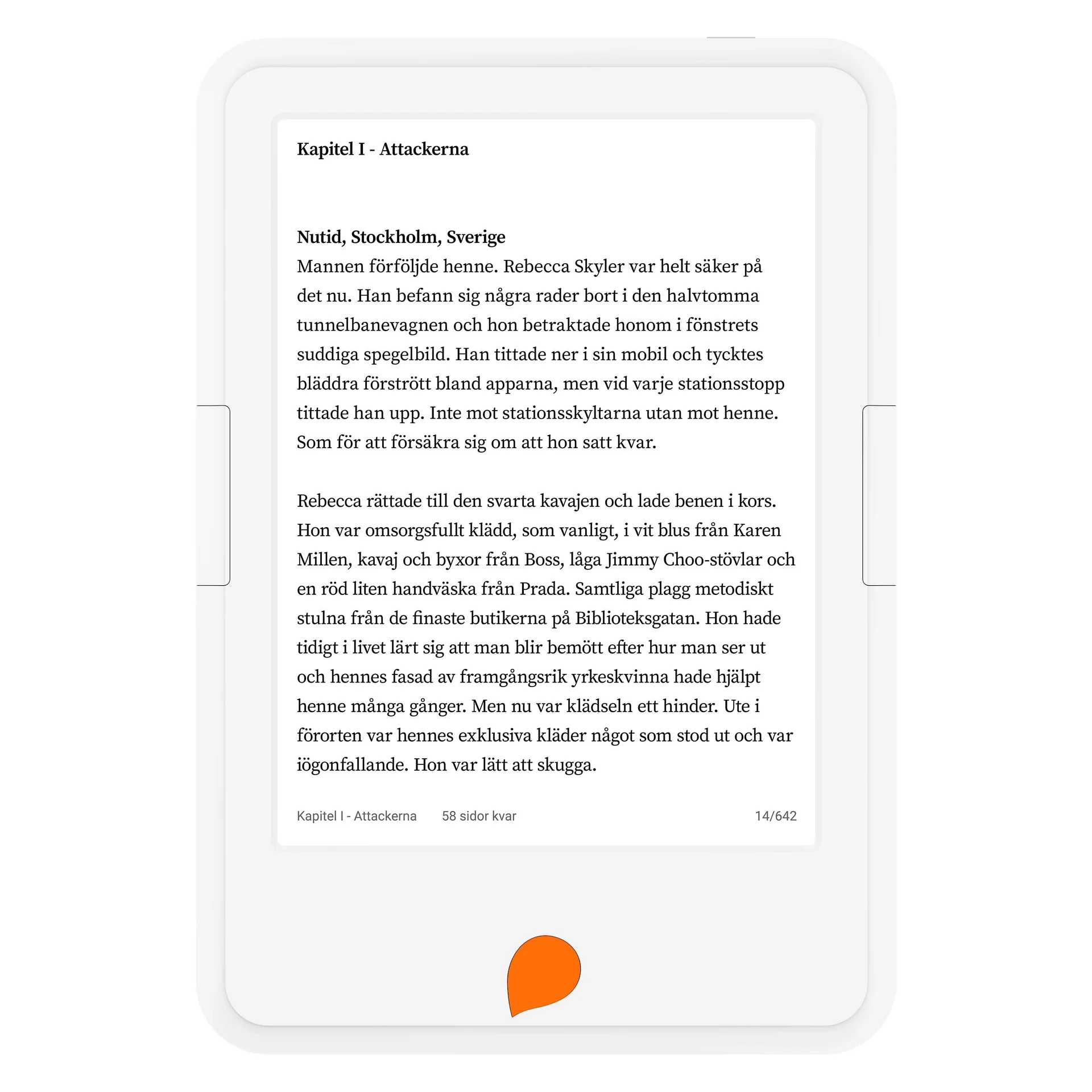
Storytel Reader from the front: 6-inch E Ink screen, side buttons and the orange home button. Product image: Storytel. 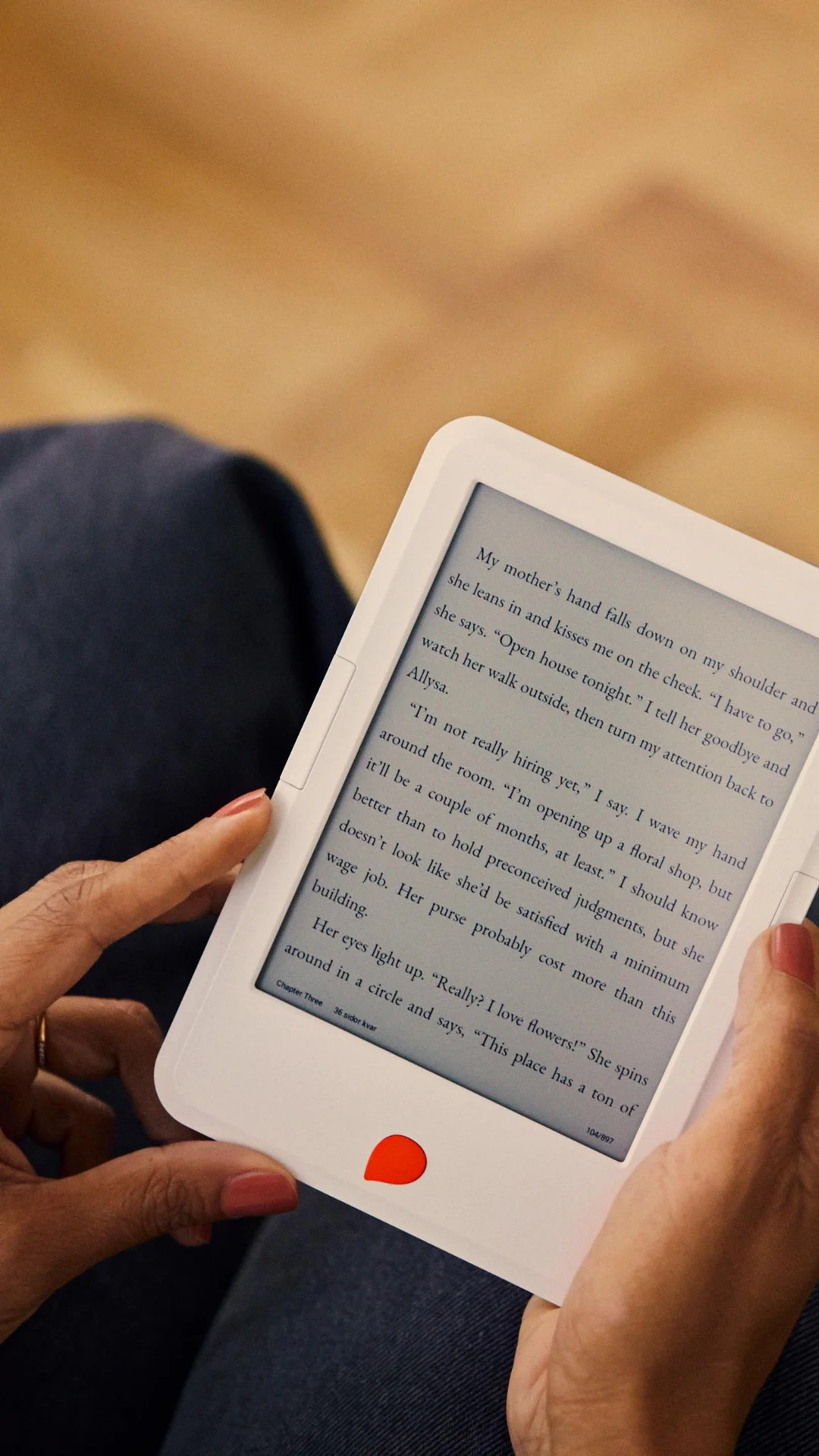
Storytel Reader in hand. The touchscreen and front light make it readable in the dark. Image: Storytel. 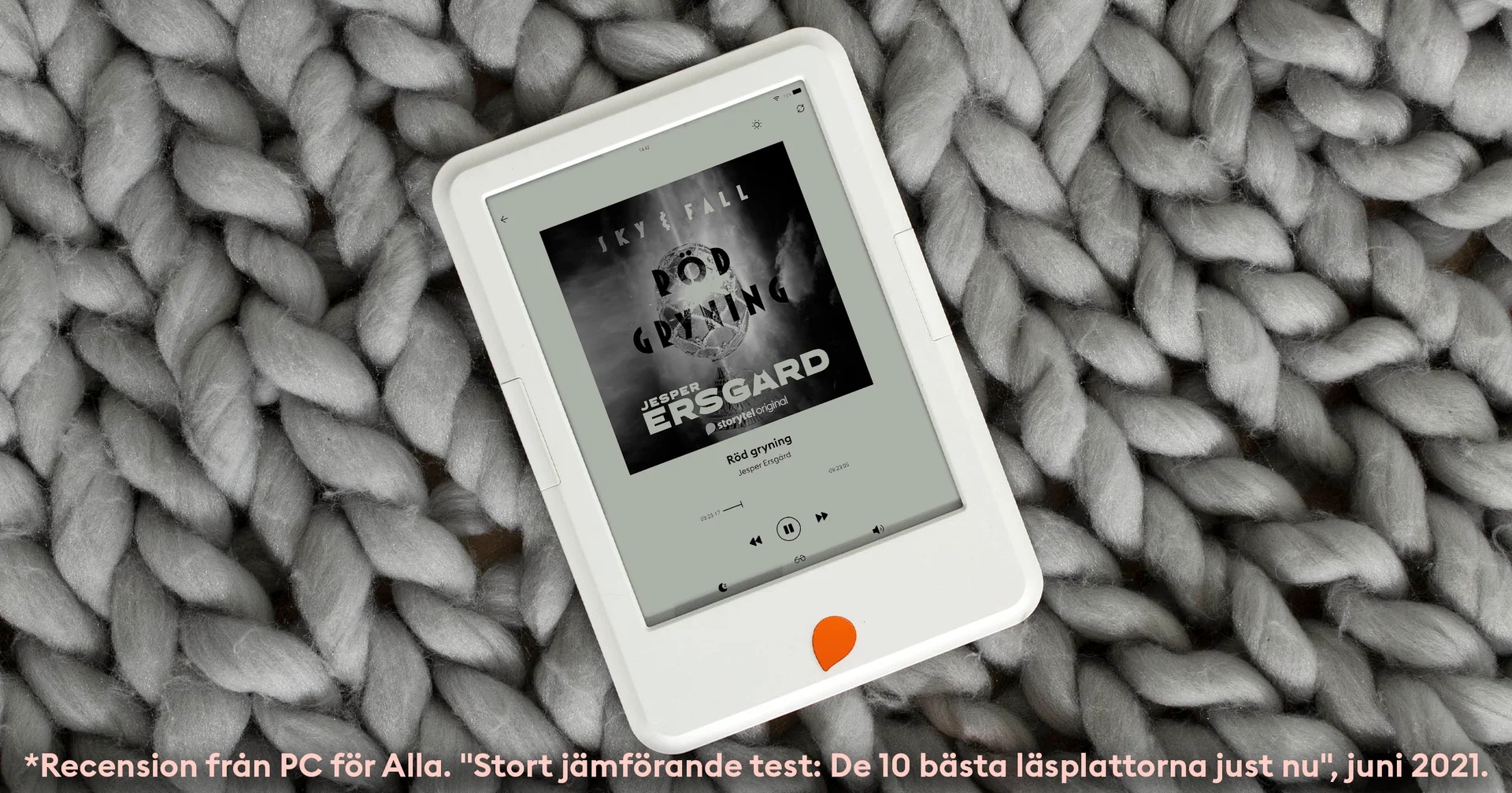
Storytel Reader showing an audiobook. Later versions play audiobooks over Bluetooth or the headphone jack. Image: Storytel. · Storytel Reader (Gen 2, USB-C) (Gen 2 (Onyx BOOX C68, RK3128))
Updated 1 November 2026